
Getting Started Flow
Master the core loop of Equilibrium: Setup your tags, define your goals, log sessions in real-time, and manage your progress.
// TABLE_OF_CONTENTS
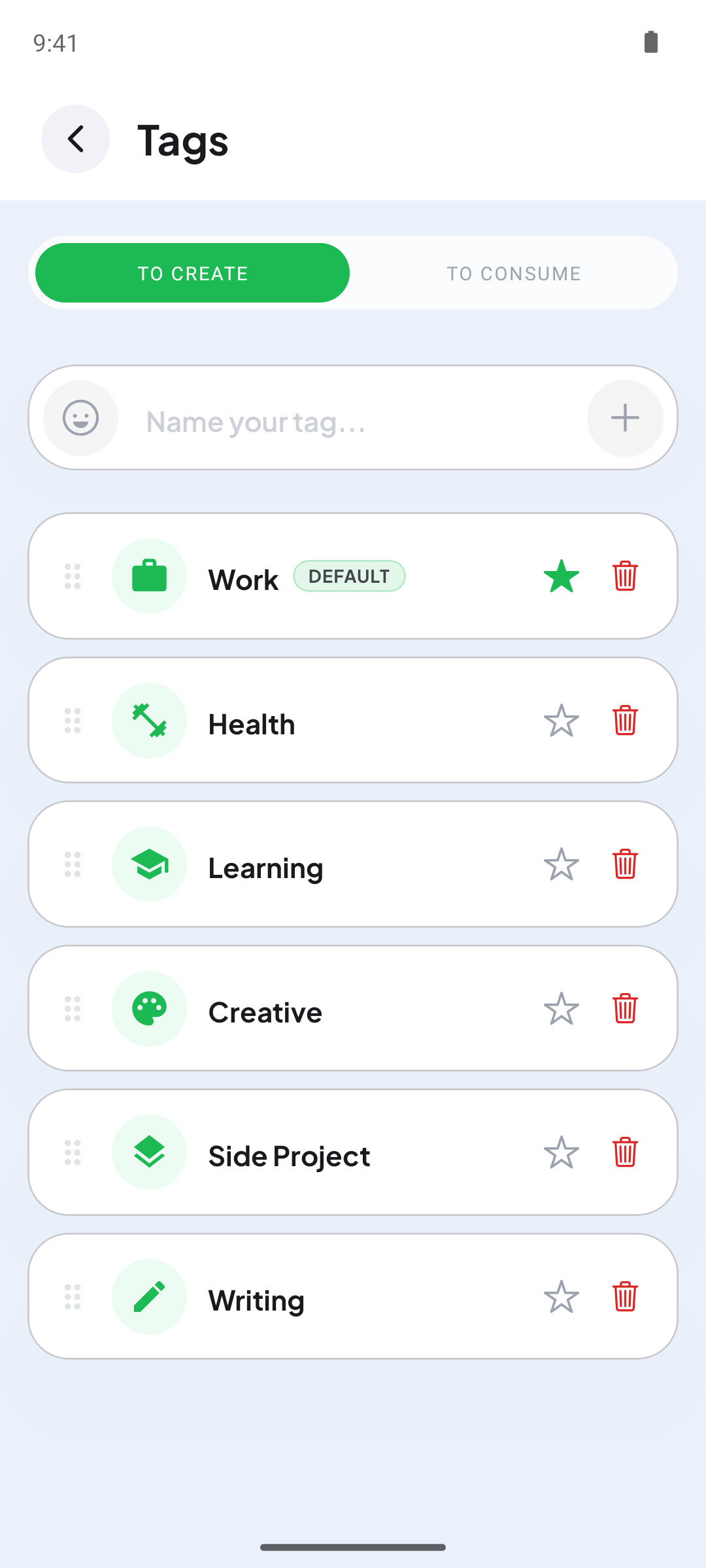
Setup Your Custom Tags
Tags are the foundation of Equilibrium. They categorize your time into two types: To Create (productive work, coding, writing) and To Consume (entertainment, gaming, scrolling).
Navigate to Tags
Go to the Settings tab (gear icon) and select Tags.
Add custom tags
Type a name and choose whether it belongs to To Create or To Consume. Select a fitting icon and tap add.
Organize and edit
Rearrange, edit, or delete existing tags to fit your exact daily workflow and personal habits.
Define Your Daily Goals
Goals help keep you accountable. You can set minimum targets for creation activities and maximum limits for consumption habits.
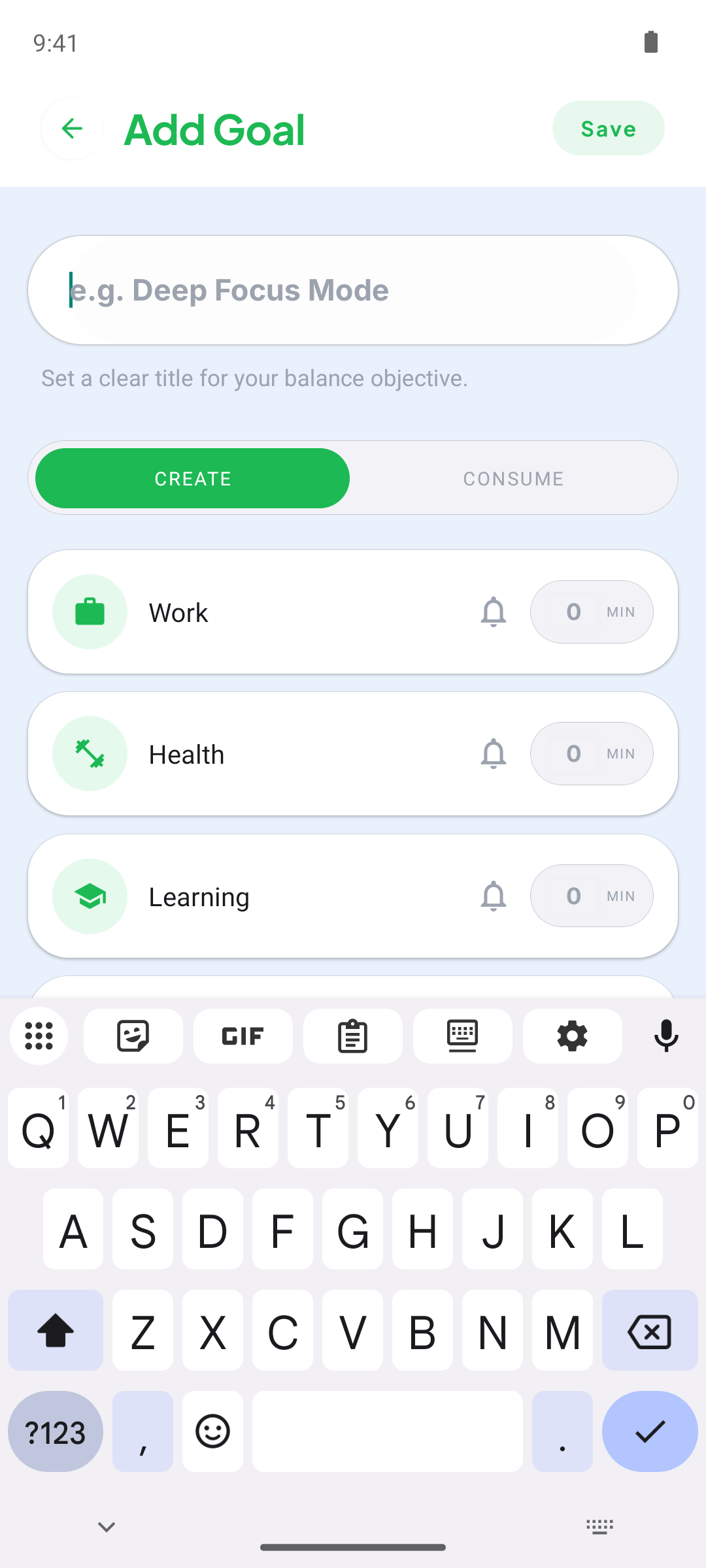
Open the Goals Tab
Tap the Goals tab (flag icon) in the bottom navigation bar.
Create a new goal
Tap the green float action button (+) to open the goal creation screen.
Select tags & limits
Define rules: e.g., set Work ≥ 4 hours or limit Gaming ≤ 1 hour. These targets guide your daily Balance Meter.
Track Your First Session
Ready to log? Tracking time in Equilibrium is simple and keeps you aware of your focus in real-time.
Understand the Balance Meter
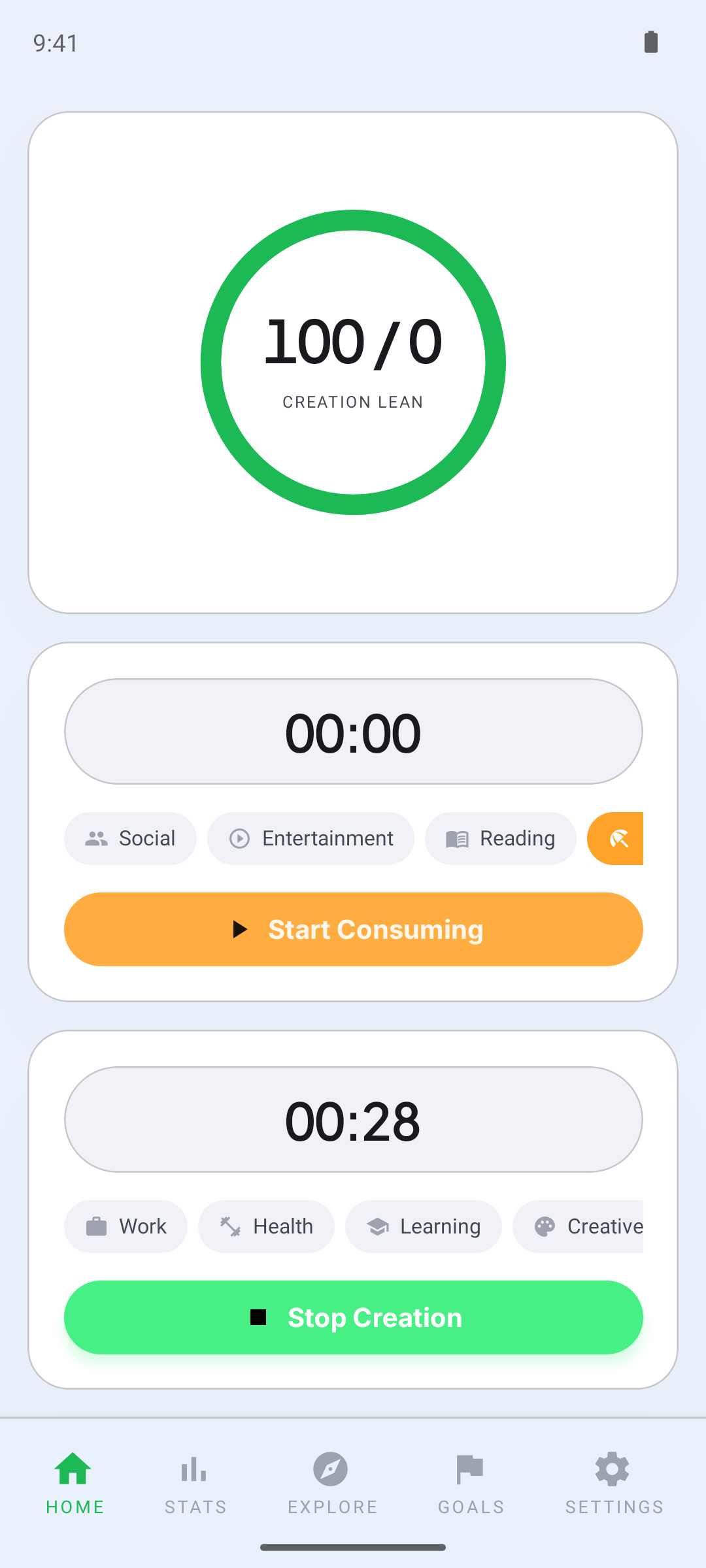
The top circular ring calculates your Create vs. Consume ratio in real-time. It resets daily so each day is a clean slate.
Pick a tag and start tracking
Select a tag on the Home page (e.g., "Work" under Creation, or "Social" under Consume) and press the start button.
Stop to save
Once you are done, press the Stop button. Your session is automatically logged into the local SQLite database.
View & Edit Session History
Analyze your progress over time and easily adjust logged sessions to keep your records perfectly accurate.
Review Streaks and Calendar
In the Stats tab, check your current and record streak. The calendar color-codes balanced days in green and active days in orange.
Inspect Day Details
Tap on any calendar day to view a pie-chart breakdown showing exactly how your time was split among active tags.
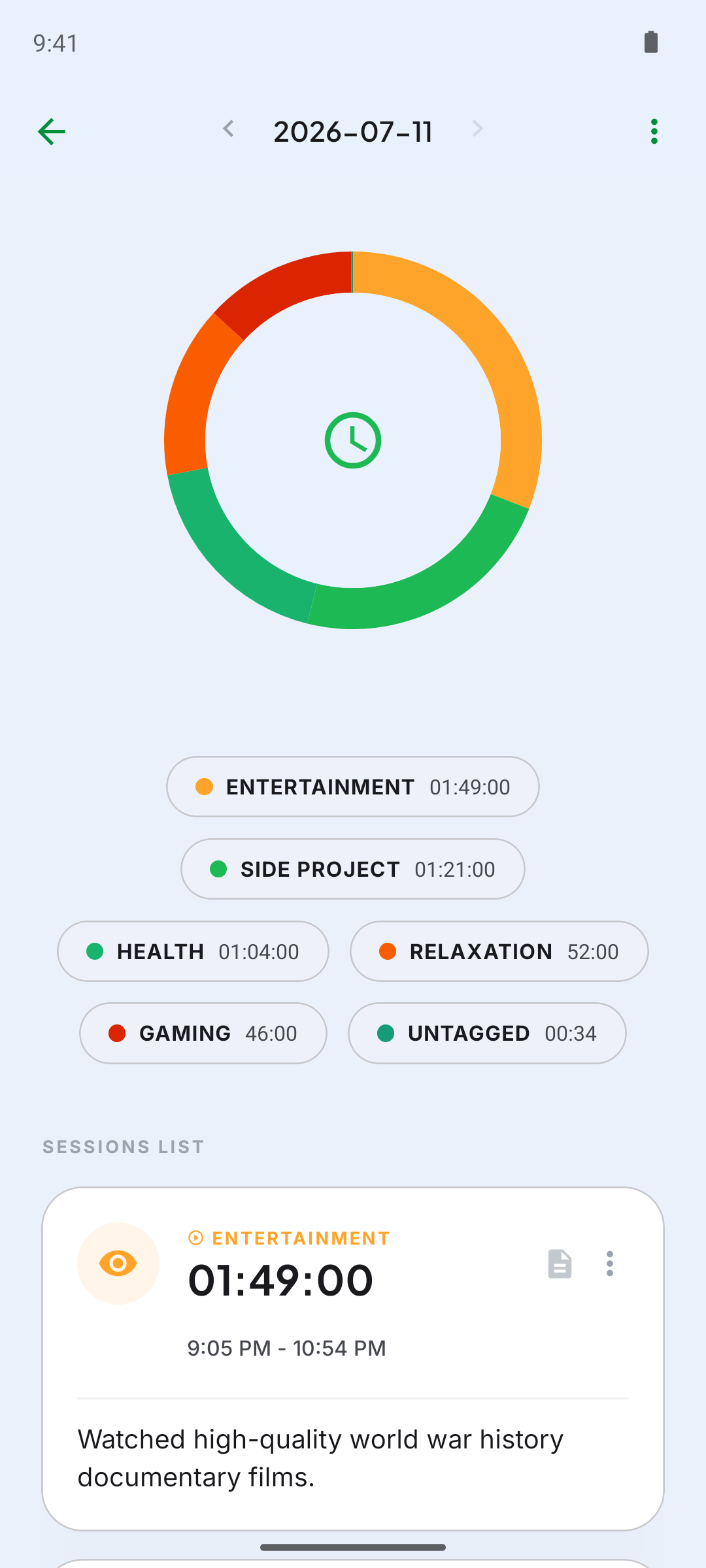
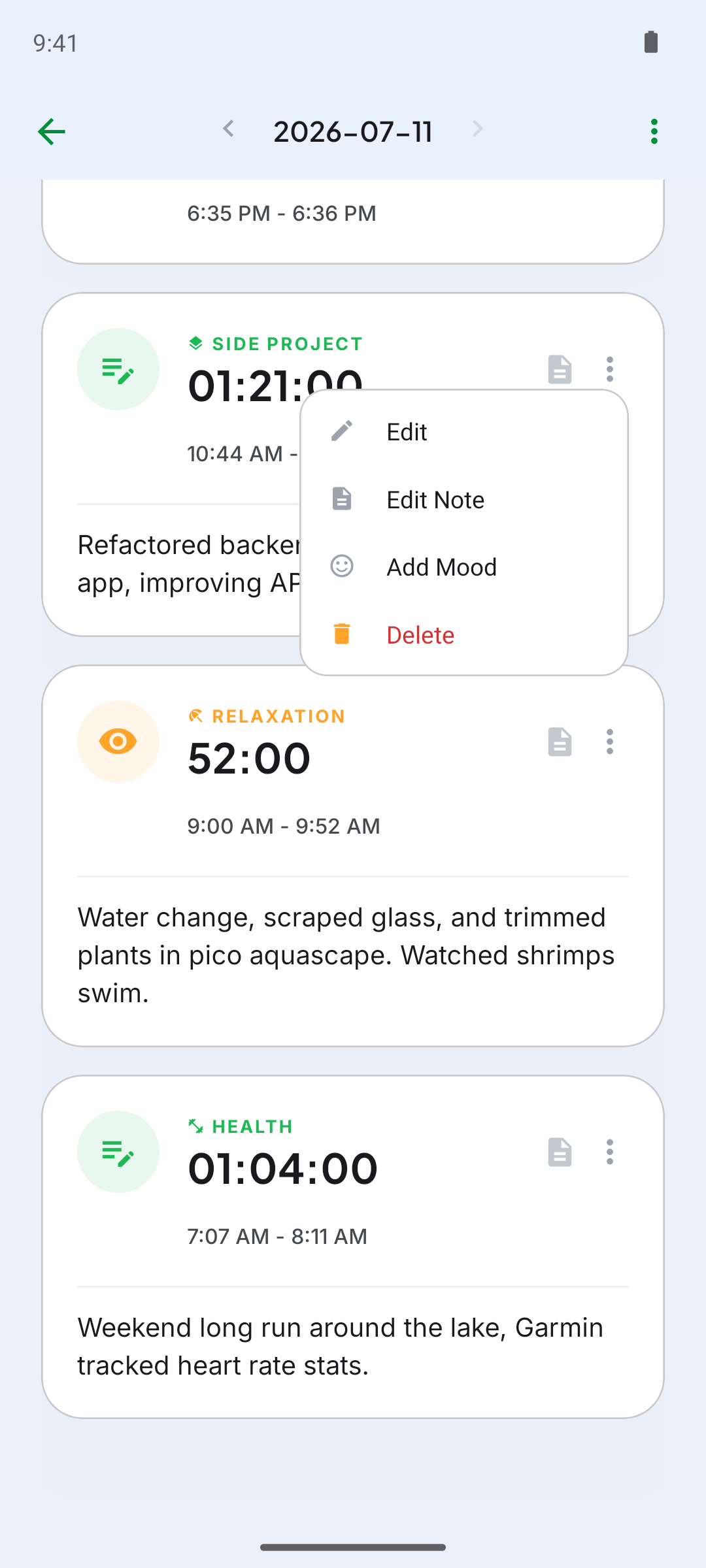
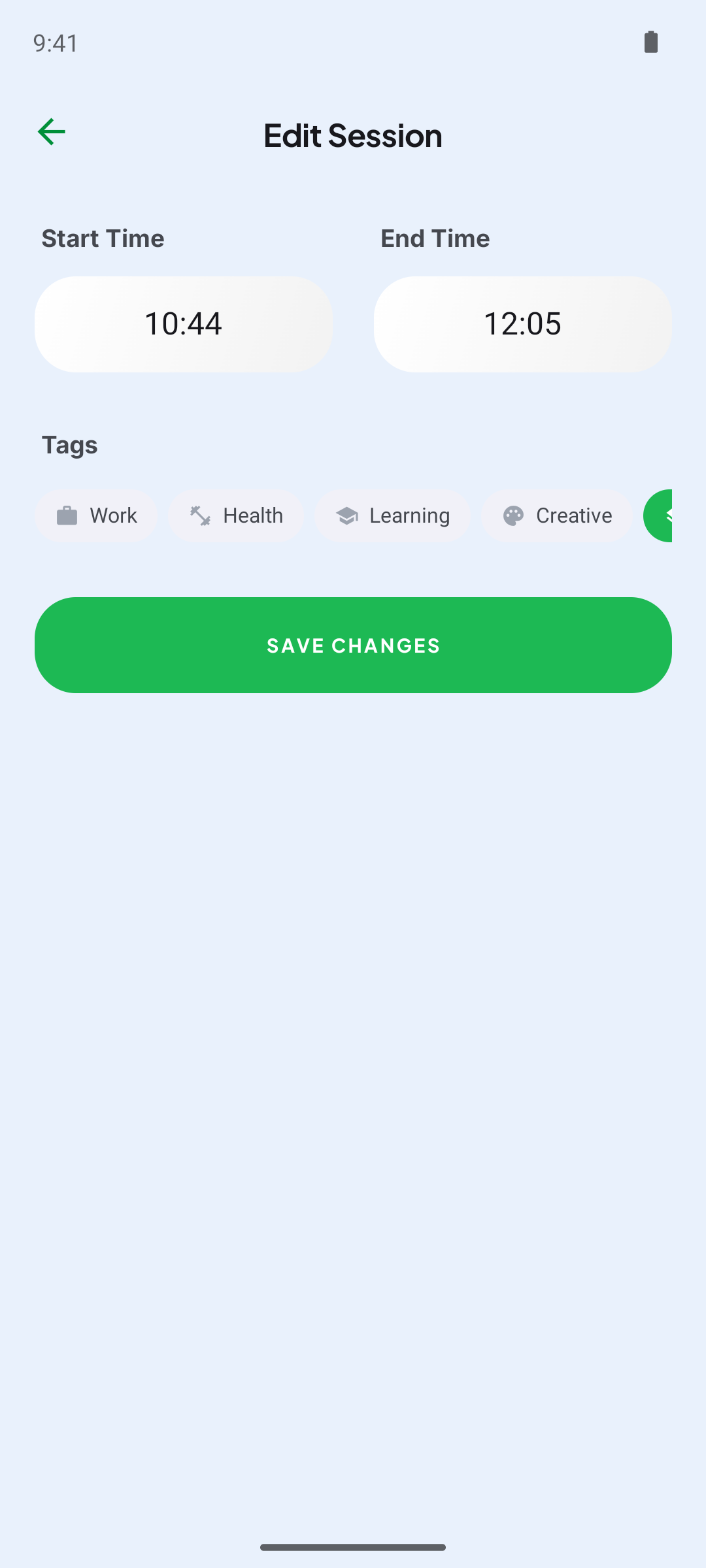
Open Session Menu
Scroll down to the Sessions List on the day's detail page, locate the target session, and tap the three-dots () menu next to it.
Edit session details
Select Edit to modify the category tags, adjust start and end times, or edit your session notes. Tap Save Changes to apply.
Delete session
Accidentally tracked a session? Choose Delete from the options menu to remove it permanently and update your balance immediately.
// QUICK_START_SUMMARY
Create your customized creation and consumption tags in Settings.
Start tracking deep focus work or downtime sessions directly from your Home screen.
Inspect your streak calendar and modify past sessions in the Statistics section.